Conformance means your data follows the standards and rules defined for your organisation. These rules help ensure data is complete, accurate, and consistent.
In the Catalog, conformance is determined by rules applied to fields, associations, and interests. These rules specify how important or necessary the information is. Administrators create system rules when creating or editing a Field, Association, or Interest Type, and can configure custom rules based on these types at the Object Type level. They use the Severity concept to define how important each rule is.
Field, Association, and Interest Type setup
When setting up a Field, Association, or Interest Type through the data model configuration page, administrators can define the importance of that information by setting the requiredness level in the validation section, which determines the Severity of conformance failures. If administrators set a Field, Association, or Interest Type as Required, objects must include this information to be created or edited successfully.
System rules
Some data model fields are Required, for example Name and System Label. The default Interest Type 'Owner' is also initialized as Required if it is created for an Object Type.
Custom rules
Conformance rules can be created by administrators at the Object Type level to track conformance based on Field and Association Type values.
Results
Results appear in the conformance dashboard, as well as icons on each object's page and on its Object Type table. Please note that unpublished changes are not checked for conformance.
Conformance is determined per object based on Severity. All system rules are critical. Custom conformance rules can be of critical, high, or medium Severity. When creating a Field, Association, and Interest Type, the administrator sets the requiredness level, which is then reported per object and in the dashboard.
| Icon | Level | Description |
|---|---|---|
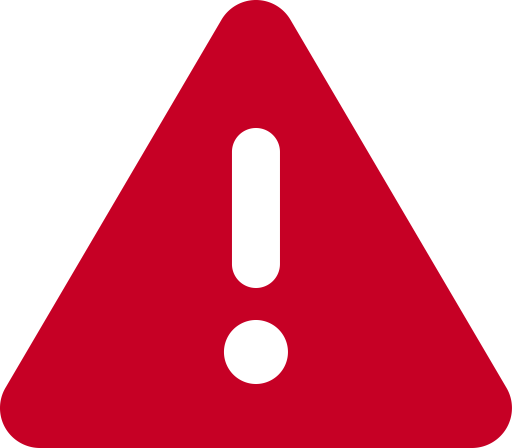 |
Critical | Important; system rules that must be met for the object to be saved, user-configured rules at this level, and Required data model types. |
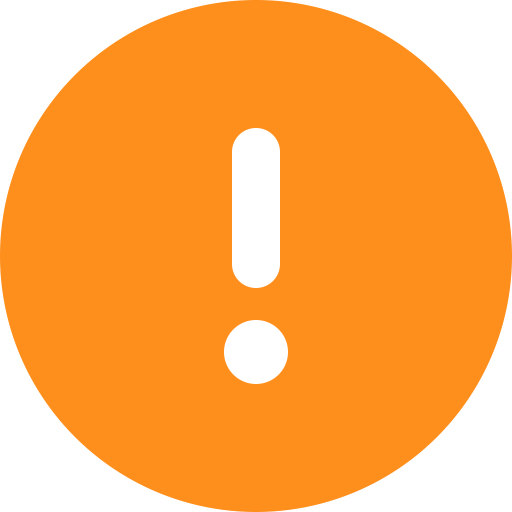 |
High | Highly recommended; user-configured rules at this level and Preferred - High data model types. |
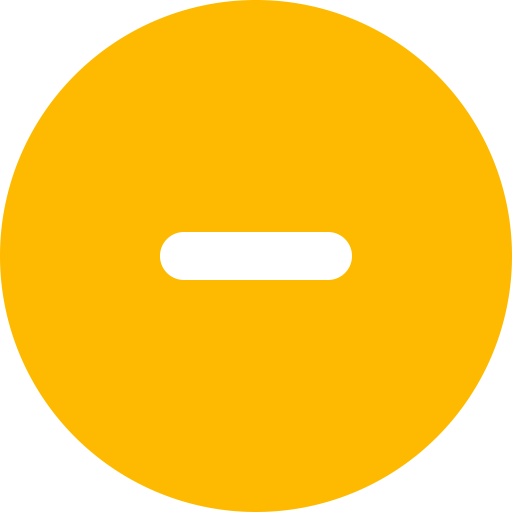 |
Medium | Recommended; user-configured rules at this level and Preferred - Medium data model types. |
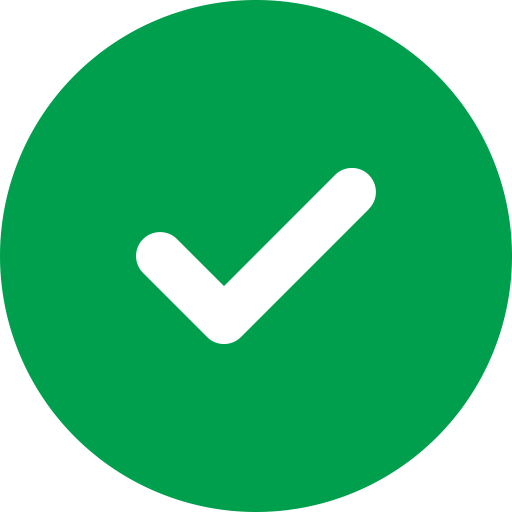 |
Low | Nice to have; Optional data model types that do not affect conformance status and are not reported in the dashboard. Not available for user-configured rules. |
 |
Unknown | Indicates that the record has unpublished modifications; displayed until these changes are published. |
If an object has multiple non-conformant fields, associations or interests, the most severe conformance rule violation status will be shown. For example, if an object fails a medium Severity user-configured rule and has a missing Preferred - Red field, the object conformance status will be reported as High Severity.
The Conformance Dashboard displays all conformance rules in an easy-to-understand way.
To navigate to the dashboard:
Conformance Dashboard
View overall conformance status for each rule, showing the number of conformant and non-conformant objects. Rules are shown in ascending order of conformance by default to help users prioritize which rules to address.
Search and filter rules
Users can quickly locate specific conformance rule results by rule name or filter by Severity and Object Type to narrow down results.
Conformance drill down
Access detailed insights into individual records, highlighting which fields fail conformance checks and why. This also shows a summary configured by administrators for custom rules to help clarify the conditions that must be met for conformance.
There are two ways to approach non-conforming data: through the Conformance Dashboard and through the Object Type table icons. Both methods lead to the same point of editing data; the steps for each are outlined below.
Conformance rules can be configured by administrators to track more complex data patterns. For example, they can be used to ensure that fields with closely related values match an expected set of values.
Custom rules are configured on an Object Type tab and can be created, edited, and deleted by administrators. In addition to the Name and System Label, the fields on custom conformance rules are:
Summary
The summary describes the purpose of a rule or the condition it uses, enabling simple rule names to be used while maintaining clarity. It is displayed when viewing an individual custom rule in the dashboard.
Severity
This can be set to critical, high, or medium and determines which icon will be displayed in tables when an object is non-conformant, and how this is reported on the dashboard.
Condition
Defines the condition that must be met for conformance. This can be a single rule or a compound condition made up of multiple grouped rules. These groups can also contain other groups, allowing precise tracking of complex data.
Matches are conformant?
Determines whether objects that meet the condition are reported as conformant or non-conformant, allowing more flexibility when setting up rules.