Data governance relies on accurate, up-to-date information. Review cycles help achieve this by prompting designated reviewers (e.g. an owner) to confirm data accuracy at regular intervals.
It is important that users know whether an object they are viewing has, or has not, been reviewed. In effect, is the data accurate and can it be relied upon when making business decisions?
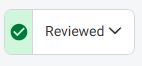
When viewing an object that has a review cycle, if everything is up-to-date then a Reviewed status will be displayed.
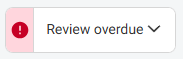
However, if the object is "out of date" and there is an overdue review, then the status will reflect this.
A full list of the statuses can be found below:
| Status | Meaning |
|---|---|
| Reviewed | The object has been fully reviewed and confirmed as accurate within the current cycle |
| Review open | A review task is available and pending; the reviewer can take action now |
| Partially reviewed | Some reviews for this object have been completed, but at least one is still outstanding |
| Not reviewed | No review has been completed for this object in the current cycle |
| Overdue | The review deadline has passed, and the object is considered out of date |
Go to the "gear" icon on the homepage to access the data model configuration page. Within this area of the product, you can select an Object Type and use the "menu" option to access the Manage review cycles function.
Complete the form to configure your new review cycle:
A reviewer will receive a notification informing them that their attention is required to review an object. The exact timing of this notification will depend on the notice period that was configured when setting up the review cycle.
On the object itself, any user can click the status icon to see what review cycles have been set up for the Object Type, when they were last completed for this object, and when they are next due.
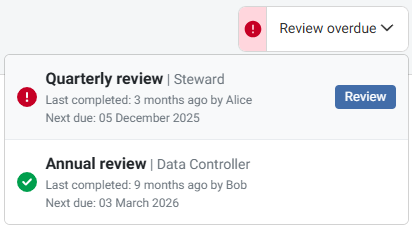
The status list may contain multiple reviews if there are several review cycles for the object. Reviews assigned to your Interest Type will display a Review button, allowing you to complete them.
Clicking the Review button will display a popup with the review message and a checkbox to confirm they have read and understood everything before completing the review.
Once all reviews are completed, the object will be marked as "Reviewed" until its next review is required. However, a reviewer will be able to complete another review on an ad hoc basis before then should they need to.