In addition to offering address autocompletion (for merchants on the Plus plan), our app includes a block, which can be used to perform advanced address verification of full addresses, which have been manually edited or filled in automatically by the user's browser or browser extension. This can be used by merchants on any Shopify plan and helps ensure your checkout captures deliverable addresses in three key scenarios:
The user selects an address suggestion using the autocompletion functionality, but then realizes they picked the wrong apartment number or that the chosen address is missing their apartment number for example, requiring them to manually edit the address fields, which can lead to unintended errors.
The user bypasses address autocompletion because they use autofill functionality provided by their browser or a browser extension. The automatically filled-in address may contain mistakes.
The user chooses an accelerated or express checkout method, such as Apple Pay or Google Pay, which pulls their details from the provider's wallet or saved profile. The saved address may also contain mistakes.
Our block can handle all of these scenarios and can be configured to automatically appear on the Checkout or Thank you page, depending on your Shopify plan. The user then has the choice to ignore the changes or to validate their address using our Experian Address Validation API.
Advanced address verification only supports the Shopify Delivery address, as the Shopify API does not currently allow extensions to write to the Billing address fields.
Our block can only be configured on the Checkout page if you are on the Shopify Plus plan, where we recommend it's used in tandem with our address autocompletion extension. If you're on a non-Plus plan, it can only be configured on the Thank you page.
It supports the following countries and datasets, depending on where it has been configured:
| Country | Dataset | Checkout page (with our Autocomplete extension enabled) | Checkout page (with our Autocomplete extension disabled) OR Thank you page |
|---|---|---|---|
| Australia | au-address |  |
|
| au-address-gnaf | |
|
|
| United Kingdom | gb-address | |
|
| gb-address-addressbase | |
|
|
| gb-additional-multipleresidence | |
|
|
| gb-additional-notyetbuilt | |
|
|
| Ireland | ie-address-ecad | |
|
| New Zealand | nz-address | |
|
| nz-additional-datafusion | |
|
|
| Canada | ca-address | |
|
| United States | us-address | |
|
| Denmark | dk-address |  |
|
| France | fr-address | |
|
| Germany | de-address | |
|
| Luxembourg | lu-address | |
|
| Netherlands | nl-address | |
|
| Singapore | sg-address | |
|
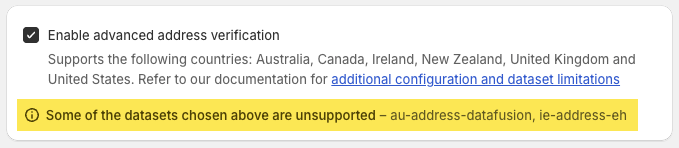
Note that the Settings page will notify you if you have the feature enabled and have selected an unsupported dataset.
Credit usage
The block behaves differently depending on whether it's been placed on the Checkout or Thank you page. Expand the sections below to explore the differences.
If the block has been added to the Checkout page and the user is searching a supported country/dataset combo, the block will display an inline card in the following scenarios:
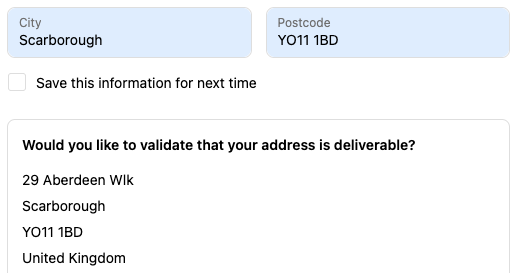
If triggered, it prompts the user to review their entered delivery address and decide if they would like to validate it:
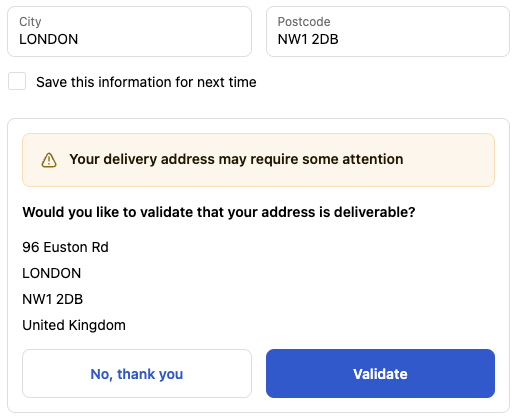
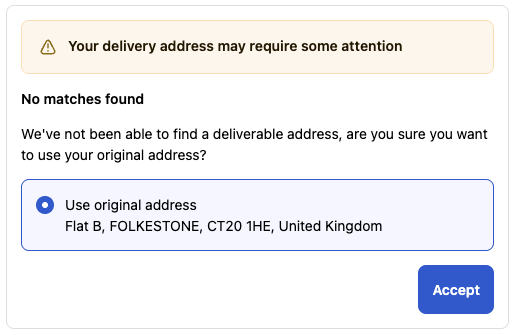
If the user chooses to validate their address on the Checkout page or reaches the Thank you page, the address will be sent to our API and result in 4 possible outcomes:
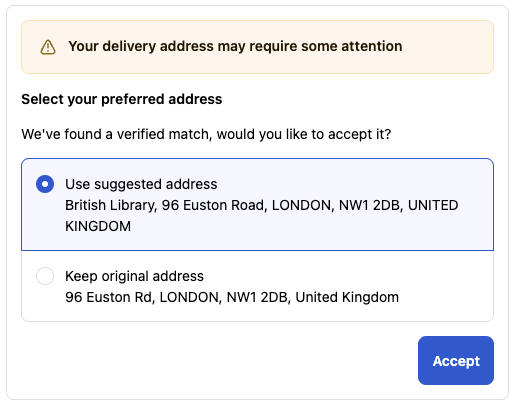
A verified match is found. The matched address will be shown to the user to confirm any corrected formatting/spelling errors and the addition of any missing address elements. The user can choose to accept the suggested address or keep their original address.
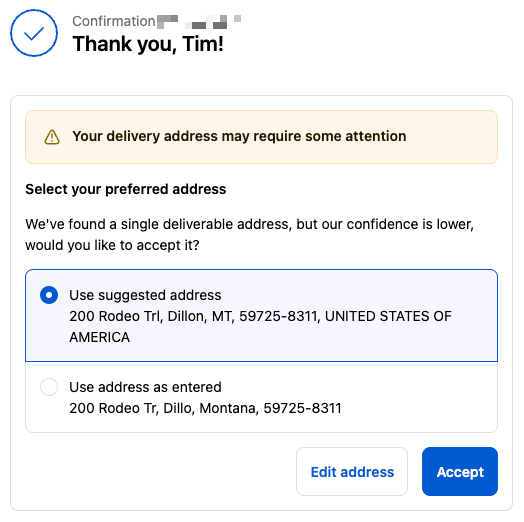
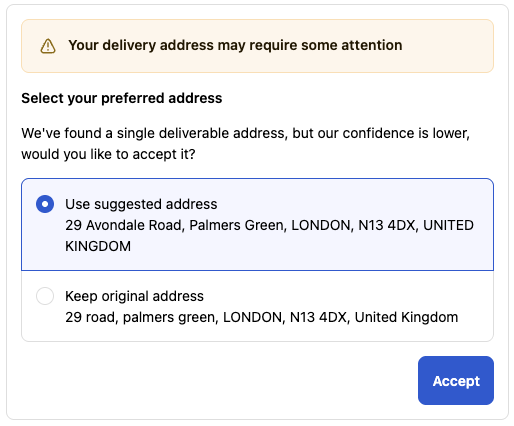
More interaction required from the user to confirm that the address is correct, as the confidence in the validity of this address is not high enough for it to be classified as a verified match.
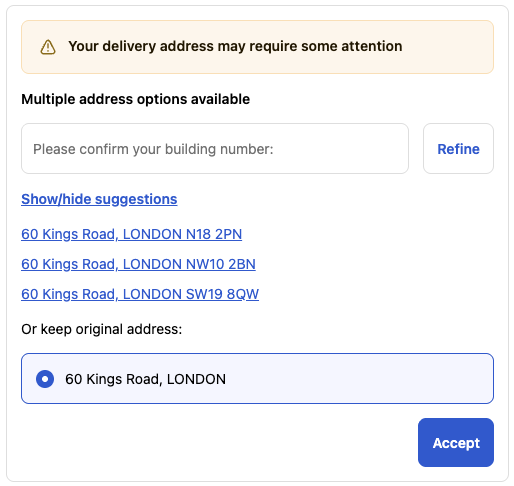
A list of suggestions:
If an API error occurs during the address verification process the block displays an apology and confirms that the address as entered has been accepted. In the case of the Thank you page it will also allow the user to edit the address manually if they wish to make further changes.
If an address is accepted on the Checkout page it is simply inserted back into the delivery address fields. On the Thank you page the behavior is a little different with a confirmation message needing to be displayed that covers the 3 possible scenarios:
In all cases the user still has the choice to edit their address manually if they wish to make further changes.
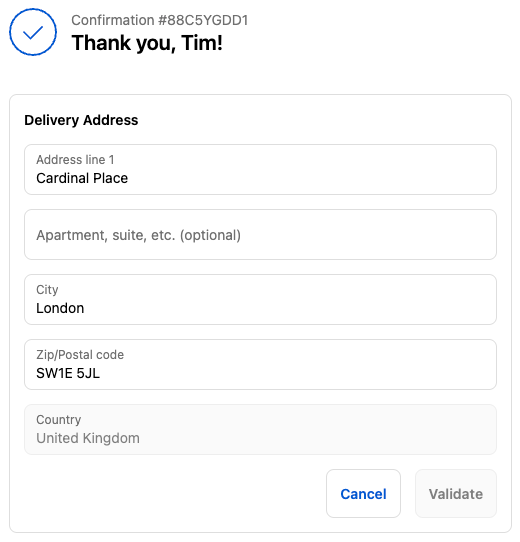
When the block is displayed on the Thank you page the user always has to the choice to edit their address manually via the Edit address button. An address entry form is displayed with the Validate button becoming active if any changes are made.
Field limitations
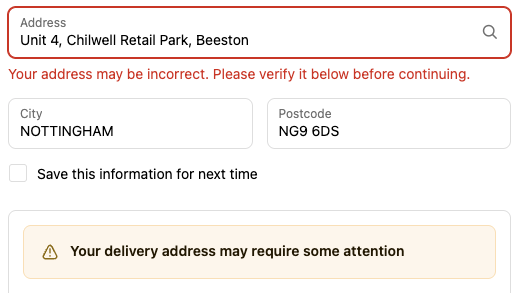
For merchants on the Plus plan we recommend using advanced address verification with our autocomplete extension. In this scenario, we know that a user has successfully used autocomplete to select a valid address, but then edited it. We can therefore be confident in showing the checkout block with a warning banner and blocking checkout progress. This is indicated by a red error message beneath the Address field and a warning banner in the checkout block. The user cannot proceed until they have dismissed the checkout block or accepted an address suggestion.
It is possible to enable our advanced address verification whilst using an alternative address autocompletion provider or disabling address autocompletion entirely. However, in this scenario we can't be confident that there are issues with the entered address, so our checkout block is displayed without the warning banner and checkout progress is not blocked.